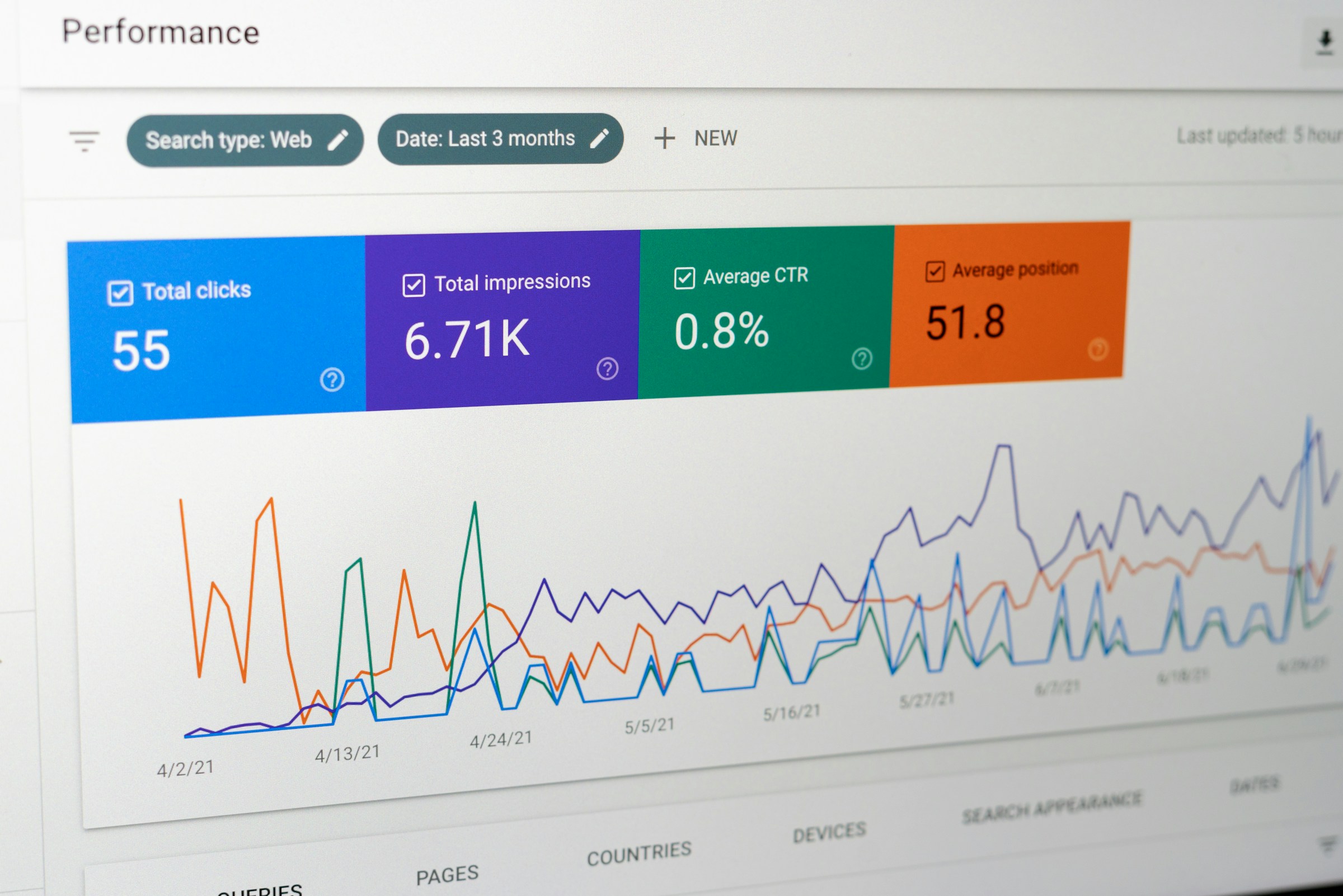
If your pages aren’t showing up on Google, there’s usually a clear reason, and Google Search Console is where you’ll find it.
Google Search Console (GSC) is a free tool that shows how Google sees your website. It tells you which pages are indexed, which are not, and why.
This matters because if a page isn’t indexed, it won’t rank. And if it doesn’t rank, it won’t bring in traffic.
To understand these issues, you need to know three simple steps. First, Google crawls your site by discovering pages through links and sitemaps.
Then it indexes those pages by storing and evaluating their content.
Finally, it ranks them based on relevance and quality. If something goes wrong in any of these steps, your pages may never appear in search results.
In GSC, these problems show up as different types of errors. Some pages are discovered but not crawled. Others are crawled but not indexed.
You may also see duplicate page issues, blocked pages, or soft errors that confuse Google. Not all of these are bad, but some can quietly hurt your visibility.
This guide breaks everything down in a simple, practical way. You’ll learn what each error means, why it happens, and how to fix it without guessing.
How Google Indexing Actually Works
Before fixing errors, it helps to understand how Google handles your pages behind the scenes because indexing follows a clear process.
Once you understand it, most issues start to make sense.
Discovery (How Google Finds Your Pages)
Everything starts with discovery. Google needs to know a page exists before it can do anything with it.
The most common ways Google discovers pages are through links and sitemaps.
Internal links connect your pages together, while external links from other websites point Google toward your content.
A sitemap acts like a roadmap, listing the pages you want Google to find.
If a page isn’t linked anywhere or included in your sitemap, it may never be discovered. These are often called “orphan pages,” and they’re a common reason content stays invisible.
Crawling (How Google Accesses Your Pages)
Once a page is discovered, Google sends a bot (Googlebot) to visit it. This is called crawling.
Googlebot reads the page, follows links, and tries to understand what’s there. But it doesn’t crawl everything equally. Some pages are crawled often, while others are skipped or delayed.
This depends on factors like site authority, internal linking, and server performance. If your site is slow or poorly structured, Google may crawl fewer pages.
Indexing (How Google Evaluates Your Content)
After crawling, Google decides whether to store the page in its index. This is where many issues happen.
Google looks at the content and asks a few key questions:
- Is this page useful?
- Is it unique?
- Does it add value compared to other pages?
If the answer is no, the page may not be indexed. Even if it was crawled successfully.
Duplicate content, thin pages, or unclear purpose can all lead to exclusion. This is why “Crawled – currently not indexed” is such a common issue.
Serving (How Pages Appear in Search)
If a page is indexed, it becomes eligible to appear in search results. This step is called serving, and it’s where ranking happens.
Google compares your page to others and decides where it belongs. This depends on relevance, quality, and authority.
A page can be indexed but still not rank well. That’s a ranking issue, not an indexing one. It’s important not to confuse the two.
Key Concepts You Need to Understand
Crawl Budget
Crawl budget is the number of pages Google is willing to crawl on your site within a given time period.
If your site has thousands of pages, Google won’t crawl all of them at once. It prioritizes what it thinks matters most.
Low-quality pages, duplicate URLs, or poor structure can waste this budget. As a result, important pages may be ignored or delayed.
Canonicalization
Canonicalization is how Google decides which version of a page is the “main” one.
If you have similar or duplicate pages, Google will choose one as the canonical version and ignore the others.
This prevents duplicate content from cluttering the index.
Problems happen when:
- You don’t set a canonical tag
- You set the wrong one
- Google disagrees with your choice
This leads to many common GSC errors.
Index Selection vs Exclusion
Not every page should be indexed. And not every excluded page is a problem.
Google actively chooses which pages to include and which to leave out. This is called index selection.
Pages may be excluded because they are duplicates, blocked, redirected, or simply not useful enough.
The key is knowing the difference between:
- Healthy exclusions (intentional or harmless)
- Problematic exclusions (blocking important pages)
Understanding Google Search Console Status Types
When you open the Pages report in Google Search Console, you’ll see your URLs grouped into different status types.
These labels show exactly how Google is handling your pages.
If you understand what each category means, you can quickly tell what needs fixing and what doesn’t.
Error (Pages That Cannot Be Indexed)
This is the most critical category.
Pages marked as “Error” cannot be indexed at all. Google tried to access them but failed due to a blocking issue.
These pages will not appear in search results unless the problem is fixed.
Common causes include:
- Server errors (your site didn’t respond properly)
- Broken pages (404 errors when they shouldn’t exist)
- Redirect loops or incorrect redirects
These issues need attention first. If an important page sits here, it’s completely invisible to Google.
Valid with Warnings (Indexed, But Not Perfect)
Pages in this category are indexed, but something isn’t quite right.
Google is still including them in search results, but it’s signaling that there may be a problem worth checking.
These warnings don’t always require immediate action, but they shouldn’t be ignored either.
Examples include:
- Indexed pages that are blocked by robots.txt
- Pages with mixed signals about how they should be handled
Think of this as a “review” category. The page is live in Google, but you should double-check that everything is set up correctly.
Valid (Successfully Indexed Pages)
This is where you want your important pages to be.
Pages labeled as “Valid” have been crawled, indexed, and are eligible to appear in search results. No major issues are preventing them from performing.
However, indexing does not guarantee rankings.
A page can be valid but still not bring traffic if:
- The content isn’t strong enough
- The page lacks authority
- It doesn’t match search intent
This category confirms visibility, but not performance.
Excluded (The Most Misunderstood Category)
This is where most confusion happens.
“Excluded” simply means Google chose not to index the page. But that choice is not always a problem.
In many cases, exclusion is intentional or even helpful.
Examples of normal exclusions:
- Pages with a “noindex” tag
- Duplicate pages with a canonical version selected
- Redirected URLs
- Admin or utility pages
These are not errors. They help keep Google’s index clean and focused.
That said, some exclusions do point to real issues, such as:
- Important pages are not being indexed
- Content that Google sees as low quality
- Pages discovered but never crawled
The key is context. Excluded doesn’t always mean bad.
Your goal is not to eliminate all exclusions. It’s to make sure the right pages are indexed, and the right pages are left out.
The Most Common Google Search Console Errors
This section covers the issues you’ll see most often in Google Search Console. Each one reflects a specific point where Google stopped moving your page forward.
1. Crawled – Currently Not Indexed
What It Means
This status means Google has already visited your page and read its content, but chose not to include it in the index.
In simple terms, Google knows the page exists. It just doesn’t think it’s worth showing in search results right now.
This is one of the most common and most misunderstood issues in Search Console.
Why Google Crawls but Doesn’t Index
Crawling and indexing are two separate decisions.
Crawling is about access. Indexing is about value.
Your page passed the first step. Googlebot was able to load it, read it, and understand it. But during evaluation, Google decided not to store it in the index.
This decision is usually based on quality signals.
Google compares your page to others on the same topic. If it doesn’t stand out or if it looks too similar to existing content, it may be skipped.
This doesn’t always mean your page is bad. It often means it’s not strong enough yet.
Common Causes
1. Thin Content
Pages with very little useful information are often excluded. This includes short articles, empty category pages, or content that doesn’t fully answer a query.
Google looks for depth and usefulness. If the page feels incomplete, it may not be indexed.
2. Low Authority
New websites or pages with no backlinks often struggle here.
If your site has low trust or authority, Google may crawl your content but delay indexing until it sees stronger signals. This is common for newer domains.
3. Duplicate Signals
If your page is too similar to another page, either on your site or elsewhere, Google may ignore it.
Even without exact duplication, overlapping topics, repeated structures, or weak differentiation can trigger this.
Google will choose one version to index and leave the rest out.
What You Should Do
Start by improving the page itself.
Make the content more complete. Answer the topic clearly. Add unique insights that aren’t already covered elsewhere.
Then strengthen internal links. Make sure the page is linked from relevant, high-value pages on your site.
If needed, build a few external links to signal importance.
After making changes, request indexing again in Search Console.
For a full breakdown and step-by-step fixes, see: Crawled – Currently Not Indexed Explained
2. Pages Discovered – Currently Not Indexed
What It Means
This status means Google knows the page exists, but hasn’t crawled it yet.
The page is in Google’s queue, but it hasn’t been visited. As a result, it cannot be indexed.
This is different from the previous issue. There, Google saw the page and rejected it. Here, Google hasn’t even evaluated it yet.
Discovered vs Crawled (Key Difference)
- Discovered = Google found the URL, but hasn’t visited it
- Crawled = Google accessed the page and read its content
This distinction matters.
If a page is stuck in “discovered,” the issue is not content quality. It’s access and prioritization.
Why This Happens
Google does not crawl every page immediately. It prioritizes based on importance, site quality, and available resources.
If your page is not seen as important, it may sit in the queue for a long time.
Common Causes
1. Crawl Budget Issues
Every site has a crawl budget. This is the number of pages Google is willing to crawl within a given timeframe.
If your site has many low-value or duplicate pages, Google may spend its budget there instead of on your important pages.
As a result, new or deeper pages remain undiscovered for longer.
2. Weak Internal Linking
Pages that are not well-connected are harder for Google to prioritize.
If a page is buried deep in your site or only linked once, Google may not see it as important.
Strong internal linking helps push pages up in priority.
3. Low Site Authority
On smaller or newer sites, Google crawls more slowly.
Without strong signals like backlinks or consistent updates, your pages may wait longer before being crawled.
What You Should Do
First, make sure the page is included in your sitemap.
Then improve internal linking. Add links from relevant pages that already get crawled often.
Remove or clean up low-value pages that may be wasting crawl budget.
You can also request indexing manually, but this works best when the underlying issue is fixed.
For a deeper explanation and practical fixes, see: Pages Discovered – Currently Not Indexed (What It Means)
3. Duplicate & Canonicalization Errors
Duplicate content is one of the most common reasons pages don’t get indexed properly.
When multiple pages show similar or identical content, Google has to decide which version to keep.
This decision is called canonicalization.
If your signals are unclear or if Google disagrees with them, you’ll start seeing these errors in Search Console.
a) Submitted URL Not Selected as Canonical
This means you told Google which page should be the main version (usually through a canonical tag or sitemap), but Google chose a different one.
In simple terms, Google is ignoring your preference.
This usually happens when:
- The selected canonical page looks more authoritative
- Your chosen page has weaker content or fewer links
- Internal linking points more strongly to a different version
Google looks at multiple signals, not just your canonical tag. If those signals don’t align, it will override your choice.
What to check:
- Are both pages too similar?
- Is your preferred page clearly better?
- Do internal links support your chosen version?
If not, Google will keep picking its own version.
For a full fix guide, see: Submitted URL Not Selected as Canonical
b) Duplicate Without User-Selected Canonical
This status appears when Google finds duplicate pages, but you haven’t specified which one should be the main version.
So Google is forced to decide on its own.
This often happens with:
- URL parameters (e.g. filters, tracking codes)
- HTTP vs HTTPS versions
- www vs non-www versions
- Pagination or similar page variations
Without a clear canonical tag, Google sees multiple versions of the same content and has to guess which one matters.
What to do:
- Add canonical tags to define the preferred URL
- Keep your URL structure consistent
- Avoid creating unnecessary duplicate pages
Learn how to fix this step-by-step: Duplicate Without User-Selected Canonical
c) Duplicate, Google Chose Different Canonical
This is similar to the first issue, but with a clearer signal.
You did set a canonical, but Google still chose another page.
This tells you there is a conflict between what you’re saying and what Google sees.
Common reasons include:
- The “wrong” page has stronger backlinks
- Internal links point to the alternate version
- Content differences are too small to justify separate pages
Google is trying to consolidate duplicates, but your signals are not strong or consistent enough.
What to focus on:
- Strengthen your preferred page (content + links)
- Update internal links to match your canonical
- Remove or merge weak duplicate pages if needed
Full breakdown here: Duplicate, Google Chose Different Canonical Fix Guide
d) Alternate Page with Proper Canonical Tag
This one often causes unnecessary concern.
It means Google found a duplicate page, saw your canonical tag, and respected it.
So it excluded the duplicate and kept the main version.
This is actually the correct behavior.
You’ll commonly see this with:
- Product variations
- Paginated content
- Tracking URLs
These pages are not indexed by design. They point to a primary version.
Important: This is not an error. It’s a confirmation that your setup is working.
Learn when to ignore or act on this: Alternate Page with Proper Canonical Tag Explained
4. Soft 404 Errors
What Soft 404 Means
A soft 404 happens when a page looks like it should exist, but doesn’t provide real value.
Instead of returning a proper “404 not found” status, the page loads normally but appears empty, irrelevant, or misleading.
Google treats this as a broken page, even though it technically works.
Why It Hurts Indexing
Google wants to show useful, complete pages in search results.
If a page looks incomplete or unhelpful, it won’t be indexed.
Soft 404s waste crawl resources and reduce overall site quality signals. If too many exist, they can slow down indexing across your site.
Common Triggers
1. Thin Pages
Pages with very little content, no clear purpose, or weak information often get flagged.
Examples include:
- Placeholder content
- Low-value blog posts
- Pages with only a few sentences
2. Empty Categories or Tags
E-commerce or blog category pages with no products or posts can trigger soft 404s.
If there’s nothing meaningful to show, Google treats the page as low value.
3. Incorrect Redirects
Redirecting unrelated pages to generic destinations (like the homepage) can cause this issue.
For example, sending a deleted product page to the homepage instead of a relevant alternative confuses Google.
What You Should Do
Decide whether the page should exist.
If it should:
- Improve the content
- Add useful information
- Make the page complete and relevant
If it shouldn’t:
- Return a proper 404 or 410 status
- Or redirect it to a closely related page
Avoid keeping low-value pages live just for the sake of it.
For detailed fixes and examples, see: Soft 404 Errors and Indexing Problems
5. Noindex & Blocking Issues
These issues happen when access to a page is intentionally or accidentally restricted.
In most cases, Google is simply following your instructions. The problem is when those instructions are wrong.
a) Excluded by ‘noindex’ Tag
This status means the page includes a noindex directive, telling Google not to include it in search results.
Google can still crawl the page, but it will not index it.
This is often intentional. Common examples include:
- Thank-you pages
- Admin or login pages
- Duplicate or filtered content
However, problems arise when important pages are accidentally marked as noindex.
This can happen due to:
- CMS settings (like WordPress discouraging search engines)
- SEO plugin misconfigurations
- Templates applying noindex across multiple pages
What to check:
- View the page source and look for the noindex tag
- Check your SEO plugin settings
- Make sure key pages (blog posts, services, products) are set to index
If the tag is there by mistake, remove it and request indexing again.
If it’s intentional, there’s nothing to fix.
Step-by-step fixes here: Excluded by ‘noindex’ Tag (How to Fix)
b) Blocked by robots.txt
This status means your robots.txt file is preventing Google from crawling the page.
If Google cannot crawl a page, it cannot properly evaluate or index it.
Robots.txt is useful for controlling what search engines can access. But small mistakes can block entire sections of your site.
Common causes include:
- Disallow rules applied too broadly
- Blocking important folders (like /blog/ or /products/)
- Forgetting to remove temporary blocks after development
For example, a simple line like:
Disallow: /
can block your entire site.
What to check:
- Open your robots.txt file (yourdomain.com/robots.txt)
- Look for disallow rules affecting important pages
- Test URLs in Google Search Console’s robots.txt tester
If a page should be indexed, it must not be blocked here.
Full fix guide: Blocked by robots.txt – Complete Fix Guide
6. Redirect & Client Error Issues
These issues relate to how your pages respond when accessed. Google expects clear, accurate signals.
When those signals are confusing or broken, indexing problems follow.
a) Page with Redirect
This status means the URL redirects to another page.
Google does not index the original URL because it points elsewhere. Instead, it focuses on the destination page.
In most cases, this is completely normal.
Common examples:
- HTTP → HTTPS redirects
- Old URLs redirected to updated versions
- Merged or removed content
This only becomes a problem when:
- Redirects are broken or looping
- The destination page is not relevant
- Important pages are unnecessarily redirected
What to check:
- Does the redirect lead to the correct page?
- Is the destination page indexable?
- Are you using the right type (301 for permanent, 302 for temporary)?
If everything is set up correctly, this status can be safely ignored.
Learn when to fix or ignore: Page with Redirect in Search Console – Should You Fix It?
b) Blocked Due to Other 4xx Issue
This status appears when a page returns a client error, but not a standard 404.
Examples include:
- 401 (unauthorized)
- 403 (forbidden)
- 410 (gone)
- Other custom 4xx responses
These errors tell Google that access to the page is restricted or that the page no longer exists.
As a result, the page cannot be indexed.
Common causes:
- Pages requiring login
- Security rules blocking bots
- Deleted content returning incorrect status codes
- Misconfigured server settings
What to check:
- Use a header checker tool to see the exact response code
- Confirm whether the page should exist
- Ensure public pages return a 200 (OK) status
If the page is important, fix the restriction or restore the content.
If it’s intentionally removed, a 410 status is acceptable and helps Google process removal faster.
Full explanation and fixes: Excluded by ‘Blocked Due to Other 4xx Issue’ Meaning
These issues are often simple to fix once you know where to look.
Most of the time, Google does not make mistakes. It’s following your instructions. The goal is to make sure those instructions are correct.
7. Sitemap & Indexing Problems
Sitemap Submitted but Pages Not Indexed
Submitting a sitemap tells Google which pages exist on your site. It does not guarantee those pages will be indexed.
If your sitemap is accepted but your pages are still not indexed, it means Google is aware of them, but is choosing not to include them.
This usually points to quality or trust issues rather than technical errors.
Common reasons include:
- Pages are too thin or provide little value
- Content is too similar across multiple URLs
- The site has low authority or limited backlinks
- Internal linking is weak, so pages don’t look important
Another common issue is submitting pages that shouldn’t be indexed in the first place, such as:
- Filtered URLs
- Duplicate variations
- Utility pages
This sends mixed signals to Google and lowers the overall quality of your sitemap.
What to check:
- Only include indexable, high-quality pages in your sitemap
- Make sure each page has a clear purpose and useful content
- Strengthen internal links pointing to these pages
A sitemap works best when it reflects your best content and not everything on your site.
Full troubleshooting guide: Sitemap Submitted but No Pages Indexed
8. Zero Indexing Issues
These are high-impact issues. If your indexed page count drops to zero or never increases, it usually means something is seriously blocking Google.
a) GSC Shows Zero Indexed Pages
If Google Search Console shows zero indexed pages, your site is not appearing in search at all.
This is rarely a content issue. It’s almost always caused by a major technical block.
Common causes include:
- A sitewide noindex tag
- Robots.txt blocking the entire site
- Incorrect domain setup in Search Console
- A newly launched site that hasn’t been crawled yet
In some cases, it’s simply a reporting delay. But if the issue persists, it needs immediate attention.
What to check first:
- Make sure your site is not set to “noindex” globally
- Review robots.txt for full-site blocking rules
- Confirm you’re viewing the correct property in Search Console
Fixing this quickly is critical, as your entire site is effectively invisible.
Step-by-step diagnosis: Why Google Search Console Shows Zero Indexed Pages
b) Indexed Pages Suddenly Drop
A sudden drop in indexed pages can be alarming. It often signals a recent change that affected how Google views your site.
Unlike a gradual decline, a sharp drop usually points to a specific trigger.
Common causes include:
- Accidental noindex implementation
- Changes to robots.txt blocking key sections
- Site migrations or URL structure changes
- Large-scale content removal or consolidation
- Google re-evaluating site quality
Sometimes, Google simply cleans up low-value pages during reindexing. But if important pages disappear, it’s a problem.
What to check:
- Recent updates to your site or SEO settings
- Coverage report changes in Search Console
- Whether key pages are still accessible and indexable
Look for patterns. If many pages are dropped at once, the cause is usually centralized.
Full breakdown and fixes: Why Indexed Pages Suddenly Drop to Zero
9. Visibility vs Indexing Confusion
Indexed but Not Appearing in Search
This is one of the most frustrating situations.
Your page is indexed. Search Console confirms it. But you still can’t find it in Google search results.
This is not an indexing problem. It’s a visibility issue.
Being indexed means your page is eligible to rank, not guaranteed to rank.
Common reasons include:
- The page targets keywords with high competition
- Content does not fully match search intent
- The page lacks backlinks or authority
- Google sees other pages as more useful
In some cases, the page may rank very low, beyond where you normally check.
What to do:
- Search using “site:yourdomain.com/page-url” to confirm indexing
- Improve content depth and clarity
- Better match the intent behind the search query
- Build internal and external links to strengthen the page
Focus on improving quality and relevance, not just indexing status.
Learn why this happens and how to fix it: Why Some Indexed Pages Don’t Appear in Search Console
Root Causes Behind Most Indexing Errors
Most indexing issues are not isolated problems. They usually come from a few core weaknesses in your site.
If you fix the root cause, many errors will resolve on their own. This is far more effective than trying to fix each issue one by one.
1. Content Quality Issues
Google’s main goal is simple: to show useful, reliable content. If a page doesn’t meet that standard, it often won’t be indexed.
Thin Content
Thin content lacks depth. It doesn’t fully answer a question or provide enough useful information.
This includes:
- Very short articles
- Pages with little original insight
- Content that repeats obvious points without adding value
Google compares your page to others on the same topic. If it falls short, it may be skipped.
What to do: Expand the content. Cover the topic clearly. Add examples, explanations, and structure that make the page genuinely helpful.
Duplicate Content
Duplicate content creates confusion.
When multiple pages are too similar, Google has to choose one and ignore the rest. This often leads to indexing issues like canonical errors or exclusions.
Duplicates can come from:
- URL variations
- Repeated product descriptions
- Similar blog topics with little differentiation
What to do: Merge overlapping pages or clearly differentiate them. Use canonical tags where needed, but don’t rely on them to fix weak content.
AI-Generated Low-Value Pages
AI content is not the problem. Low-value content is.
If pages are generated quickly without adding real insight, they often lack originality and depth. Google can detect patterns of low effort, even if the content is readable.
This leads to:
- Crawled but not indexed pages
- Soft 404 classifications
- Low trust signals across the site
What to do: Edit and improve AI content. Add human input, clarity, and unique value. Focus on usefulness, not volume.
2. Technical SEO Problems
Even strong content can fail if technical signals are incorrect.
Broken Links
Broken links lead to pages that don’t exist or cannot be accessed.
This affects both users and search engines. If Google hits too many broken paths, it may reduce crawling or skip parts of your site.
What to do: Fix internal links regularly. Make sure all important pages return a proper 200 (OK) status.
Incorrect Canonical Tags
Canonical tags tell Google which page is the main version. If used incorrectly, they can point Google away from the page you want indexed.
Common mistakes include:
- Pointing to the wrong URL
- Using canonicals on non-duplicate pages
- Conflicting signals between canonicals and internal links
What to do: Make sure canonical tags match your intended page structure. Keep signals consistent across your site.
Misconfigured robots.txt
Robots.txt controls what Google can crawl.
A small mistake here can block important pages or even your entire site.
What to do: Review your robots.txt file carefully. Only block pages that should not be crawled. Never block key content.
3. Authority & Crawl Budget Issues
Google doesn’t treat all sites equally. It prioritizes based on trust, authority, and efficiency.
Low Domain Authority
New or low-authority sites often struggle to get pages indexed quickly.
Google may crawl them less frequently and be more selective about what it indexes.
What to do: Build trust over time. Publish useful content consistently and earn backlinks from relevant sources.
Poor Internal Linking
Internal links help Google understand which pages matter.
If a page has few or no internal links, it may be seen as unimportant, even if the content is strong.
What to do: Link to key pages from relevant content. Use clear anchor text and keep your linking structure logical.
Large Sites with Weak Structure
On larger sites, crawl budget becomes more important.
If your site has many low-value or duplicate pages, Google may spend time crawling those instead of your important pages.
What to do: Clean up unnecessary URLs. Focus your site on high-quality, indexable content.
4. Site Structure Problems
Your site structure affects how easily Google can find and prioritize your pages.
Orphan Pages
Orphan pages are not linked from anywhere on your site.
Even if they exist in your sitemap, they are harder for Google to discover and prioritize.
What to do: Make sure every important page is linked from at least one other page.
Deep Page Depth
Pages that are too many clicks away from the homepage are less likely to be crawled frequently.
Google prioritizes pages that are easier to reach.
What to do: Keep important pages within a few clicks of your homepage. Flatten your structure where possible.
Poor Navigation
If your navigation is unclear or inconsistent, both users and search engines struggle to move through your site.
This reduces crawl efficiency and weakens internal linking signals.
What to do: Use clear menus, logical categories, and consistent structure across your site.
How to Diagnose Errors in Google Search Console (Step-by-Step)
Fixing indexing issues starts with a clear diagnosis. Google Search Console gives you all the data you need, so you just need to know where to look and how to read it.
This process is simple once you break it down.
Using the Pages Report
Start with the Pages report (previously called Coverage).
This is your main dashboard for indexing status. It groups your pages into categories like Error, Valid, and Excluded, and shows exactly how many URLs fall into each.
Click into any category to see the affected pages and the specific issue type.
Focus on:
- Errors affecting important pages
- Unexpected exclusions
- Sudden changes in page counts
Don’t try to fix everything at once. Start with patterns. If many pages share the same issue, they likely have the same root cause.
URL Inspection Tool Walkthrough
Once you find a problem page, use the URL Inspection Tool.
Paste the exact URL into the tool. It will show how Google sees that page.
You’ll get key information, including:
- Whether the page is indexed
- The last crawl date
- The canonical URL Google selected
- Any detected issues
This tool gives you page-level clarity. It removes guesswork.
Live Test vs Indexed Version
Inside the URL Inspection Tool, you’ll see two important views:
Indexed version
This shows the last version of the page that Google stored. It may be outdated if changes were made recently.
Live test
This fetches the current version of the page in real time.
Comparing these helps you spot problems quickly.
For example:
- If the live page is fixed but the indexed version isn’t, Google just hasn’t updated yet
- If both versions show the same issue, the problem is still active
This step helps you confirm whether your fix actually worked.
What to Check on Every Page
When inspecting a URL, focus on three key areas.
Canonical
Check which URL Google considers the main version.
If Google-selected canonical does not match your intended page, there’s a signal conflict.
Look for:
- Incorrect canonical tags
- Stronger internal links pointing elsewhere
- Duplicate pages competing with each other
Your goal is alignment. All signals should point to the same preferred URL.
Crawl Status
Check whether Google was able to access the page.
Look for:
- Crawl errors
- Blocked resources
- Robots.txt restrictions
If Google can’t crawl the page properly, it won’t move to indexing.
Indexing Status
This tells you whether the page is included in Google’s index.
If it’s not indexed, you’ll see the reason. This is where statuses like “Crawled – currently not indexed” or “Excluded” appear.
Use this as your starting point for troubleshooting.
Simple Workflow You Can Follow
Keep your process consistent. This avoids confusion and saves time.
1. Identify the Issue
Start in the Pages report.
Find the error type and list affected URLs. Focus on high-value pages first.
2. Inspect the URL
Use the URL Inspection Tool.
Understand how Google sees the page. Check canonical, crawl, and indexing details.
3. Validate the Fix
Make the necessary changes on your site.
Then use the Live Test to confirm the issue is resolved.
Do not skip this step. It ensures your fix actually works before asking Google to reprocess the page.
4. Request Indexing
Once the issue is fixed, request indexing in the URL Inspection Tool.
This prompts Google to revisit the page sooner.
Keep in mind:
- This does not guarantee immediate indexing
- It simply speeds up re-evaluation
How to Fix Indexing Issues (Practical Framework)
Fixing indexing problems is not about quick tricks. It’s about following a clear process and fixing the right things in the right order.
If you try to fix everything at once, you’ll waste time and create more confusion. A simple system keeps you focused and consistent.
Step 1: Identify the Issue Type
Start by understanding exactly what you’re dealing with.
Go to the Pages report and find the specific status:
- Crawled but not indexed
- Discovered but not crawled
- Duplicate or canonical issue
- Blocked or excluded
Each issue has a different cause. Treating them the same leads to poor results.
Focus on:
- High-value pages first
- Issues affecting multiple URLs
- Sudden changes or spikes
Clarity at this stage saves time later.
Step 2: Fix Technical Blockers
Before improving content, make sure nothing is blocking the page.
Check for:
- Noindex tags
- Robots.txt restrictions
- Broken pages (4xx or 5xx errors)
- Incorrect redirects
If a page is blocked, Google cannot process it properly, no matter how good the content is.
Fix these issues first. They are often the simplest to resolve and have the biggest impact.
Step 3: Improve Content Quality
Once the page is accessible, focus on value.
Ask yourself:
- Does this page fully answer the topic?
- Is it better than similar pages already ranking?
- Does it offer something unique?
If the answer is unclear, the page may not be indexed.
Improve the content by:
- Adding depth and clarity
- Removing unnecessary repetition
- Making the purpose of the page obvious
Avoid creating multiple weak pages on similar topics. One strong page performs better than several thin ones.
Step 4: Strengthen Internal Linking
Internal links help Google understand which pages matter.
If a page has few or no internal links, it may be seen as low priority.
Improve this by:
- Linking from relevant, high-traffic pages
- Using clear and natural anchor text
- Making sure the page is easy to reach within your site
Good internal linking increases crawl frequency and improves indexing chances.
Step 5: Resubmit to Google
After making changes, ask Google to review the page again.
Use the URL Inspection Tool and click “Request Indexing.”
This step helps speed up reprocessing, but it does not guarantee immediate results.
Make sure the page is fully fixed before submitting. Repeated requests without real changes won’t help.
Which GSC Errors You Should Ignore (Important Section)
Not every issue in Google Search Console needs fixing.
Some statuses are simply reports of how your site is structured. If you try to “fix” everything, you can create more problems than you solve.
“Alternate Page with Canonical” (Normal Behavior)
This status means Google found a duplicate page and followed your canonical tag to the preferred version.
That’s exactly what should happen.
For example:
- Product variations pointing to one main product page
- URLs with tracking parameters
- Paginated or filtered pages
Google is consolidating duplicates and indexing the correct version.
There is nothing to fix here unless:
- The canonical points to the wrong page
- The main page is not indexed
If your canonical setup is correct, you can safely ignore this.
“Page with Redirect” (Often Fine)
This means the URL redirects to another page.
Google does not index the original URL because it leads somewhere else. Instead, it focuses on the destination.
This is normal in many cases, such as:
- Redirecting old URLs to updated ones
- HTTP to HTTPS redirects
- Merged or removed pages
This only becomes a problem if:
- The redirect is broken or loops
- The destination page is not relevant
- Important pages are being redirected unnecessarily
If your redirects are clean and intentional, this status is not an issue.
Duplicate Pages (Sometimes Expected)
Duplicate pages are not always a mistake.
Many websites naturally create duplicates through:
- URL parameters
- Sorting and filtering options
- Session IDs or tracking links
Google handles this by choosing one version to index and ignoring the rest.
This is part of normal index management.
You only need to act if:
- Important pages are being excluded
- Google selects the wrong version as canonical
- Duplicate pages are causing confusion or dilution
Otherwise, duplicates are expected and often harmless.
Best Practices to Prevent Future Errors
- Maintain clean site architecture
Keep your site structure simple and organized so Google can easily find, crawl, and understand your most important pages. - Use consistent canonical tags
Ensure every page clearly points to its preferred version to avoid duplicate confusion and indexing conflicts. - Optimize internal linking
Link strategically between pages to help Google prioritize important content and improve crawl efficiency. - Regularly update sitemaps
Keep your sitemap accurate by including only indexable, high-quality pages that you want Google to focus on. - Avoid thin or low-value pages
Publish content that provides clear value, so Google has a strong reason to index and rank your pages.
Tools That Help Fix Indexing Issues
- Google Search Console (Primary Tool)
This is the most important tool because it shows exactly how Google crawls and indexes your site, including errors, excluded pages, and indexing status directly from Google itself. - Google Analytics
This helps you understand how users interact with your pages, which can reveal low-value or underperforming content that may struggle to get indexed. - Screaming Frog
This tool crawls your entire website like a search engine and identifies technical issues such as broken links, duplicate content, and crawl errors that can block indexing. - Ahrefs / SEMrush
These are all-in-one SEO platforms that run full site audits, detect indexing and technical issues, and provide insights into backlinks, content gaps, and overall site health.
Final Thoughts
Indexing is the foundation of SEO. If your pages aren’t indexed, they can’t rank, and they won’t bring in traffic.
The good news is that most indexing issues are clear once you understand how Google works. Each status in Search Console points to a specific reason.
When you focus on the root cause, whether it’s content quality, technical setup, or site structure, you can fix problems with confidence.
You don’t need to aim for a perfect report. You need a site where the right pages are indexed, and the rest are handled correctly.
Make it a habit to check Google Search Console regularly. Small issues are easier to fix early, and consistent monitoring helps you spot patterns before they affect your traffic.
Keep your approach simple, consistent, and focused, and indexing becomes much easier to manage.
FAQs
This usually means Google visited your page but didn’t find enough value to include it in the index. Common reasons include thin content, duplicate topics, or low authority. Improving content quality and internal linking often helps.
Indexing can take anywhere from a few hours to several weeks. It depends on your site’s authority, crawl frequency, and content quality. New or low-authority sites typically take longer.
No. Many excluded pages are intentional, such as duplicates, redirects, or pages with a noindex tag. Focus only on important pages that should be indexed but aren’t.
Errors that completely block indexing are the most serious. This includes server errors, sitewide noindex tags, or robots.txt blocking important pages. These can prevent your entire site from appearing in search.
Yes. If a page is not indexed, it cannot rank at all. Even partial indexing issues can reduce visibility, limit traffic, and weaken overall site performance.





I’m Alex Crawley, an SEO specialist with 7+ years of hands-on experience helping new websites get indexed on Google. I focus on simplifying technical indexing issues and turning confusing problems into clear, actionable fixes.