You check Google Search Console, and something doesn’t add up. Your page is indexed, but it’s nowhere to be found in the reports. It feels like something is broken, but it’s not.
This matters because you rely on this data to track rankings, clicks, and growth. If pages seem to be missing, it can lead to wrong decisions or unnecessary fixes.
In this guide, you’ll learn why this happens, when it’s normal, and how to confirm what’s really going on, so you can stay in control of your SEO.
Want to become a pro at diagnosing issues in GSC? Follow this detailed Google indexing errors guide.
What “Indexed” Really Means
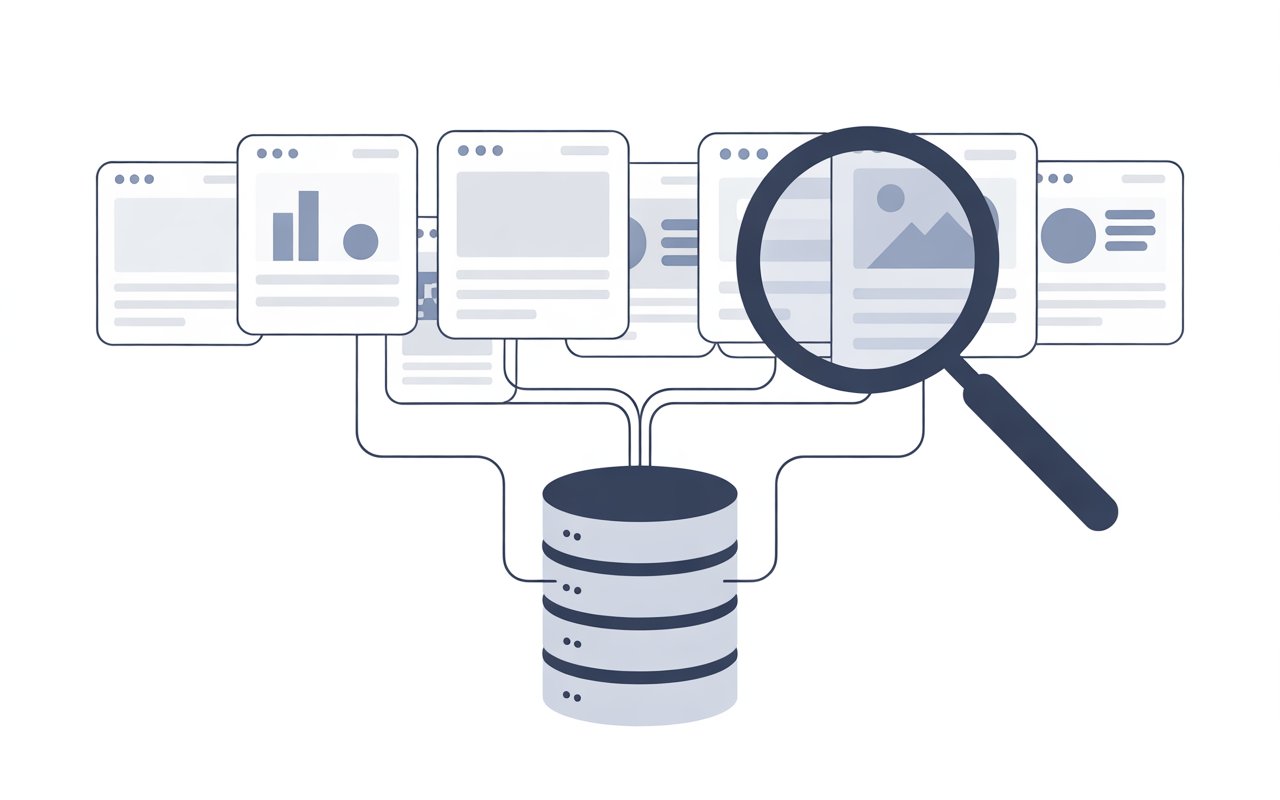
When a page is “indexed,” it means Google has found it, understood it, and stored it in its database.
Think of it like adding a book to a library. The book exists in the system, but that doesn’t mean people are reading it yet.
This is where confusion starts. An indexed page is not the same as a page showing in Search Console reports.
Search Console mainly shows pages that get impressions or clicks. If a page isn’t appearing in search results, it often won’t show up in the data.
Google also processes each page before adding it to the index. It looks at the content, structure, and meaning.
Then it decides when and where that page might appear in search results. This step makes the page eligible to rank, but it does not guarantee visibility.
That’s the key point. Indexing means your page can appear in search. It does not mean it will appear, or that it will show up in Search Console.
How Google Search Console Collects Data
Google Search Console collects data from Google’s own search systems, but it does not show everything. It only reports what it records from real search activity.
When someone searches on Google, and your page appears, that interaction can be counted as an impression, and if they click, it becomes a recorded visit.
This is what powers the Performance report. However, this data is not complete.
Google uses aggregation and sampling to keep reports fast and usable, which means very low-traffic pages, rare queries, or recently indexed URLs may not appear at all.
This is why you can have indexed pages that seem “missing” from reports—they simply have no measurable data yet, or the data is too small to show.
It’s also important to understand the difference between the URL Inspection tool and the Performance report.
The URL Inspection tool checks a single page and tells you its indexing status directly from Google’s index.
It answers the question, “Is this page known to Google?” The Performance report answers a different question: “Did this page show up in search, and did users interact with it?”
These two tools serve different purposes, and mixing them up is a common reason people think something is wrong when it isn’t.
Common Reasons Indexed Pages Don’t Appear
Low or No Search Impressions
A page can be indexed but still not rank for any meaningful keywords. If it doesn’t show up in search results, it won’t generate impressions or clicks.
And if there’s no activity, it won’t appear in reports. This is common for new pages, weak content, or pages targeting very low-volume keywords.
In simple terms, the page exists in Google’s system, but no one is seeing it yet.
Recently Indexed Pages
Newly indexed pages often take time to appear in Search Console data. Google needs to crawl, process, and test where the page fits in search results.
Even after indexing, reporting can lag by a few days. During this period, the page may be live in the index but still missing from reports.
This delay is normal and usually resolves on its own.
Data Sampling in Search Console
Search Console does not show every single URL or query. It uses aggregated data to keep reports fast and manageable.
This means pages with very low impressions or rare queries may be excluded. The data you see is a strong sample, not a complete list.
As a result, some indexed pages will not appear simply because their data is too small to report.
Canonicalization Issues
Google may choose a different version of a page as the main (canonical) one. When this happens, the selected canonical URL gets the visibility and data, not the duplicate.
If your page is seen as similar to another, it may stay indexed but not appear in reports.
This often happens with duplicate content, URL parameters, or similar pages targeting the same topic.
Filter or Query Limitations
Sometimes the page is in the data, but your filters are hiding it. Search Console allows filtering by date, query, page, country, and device.
A narrow date range or specific filter can remove pages from view. If you’re not seeing a page, it’s worth checking whether your filters are too restrictive.
Crawled but Not Indexed Properly
In some cases, a page is crawled and even appears indexed for a short time, but Google does not fully commit to it.
This can happen when content quality is low, signals are weak, or the page adds little value compared to others.
Google may keep it in a “soft” state where it exists in the index but rarely shows in search.
Without visibility, it won’t generate data, and it won’t appear in Search Console reports.
How to Verify If a Page Is Truly Indexed
Using the URL Inspection Tool
The most reliable way to check indexing is inside Google Search Console using the URL Inspection tool.
Paste your exact page URL, and Google will tell you if it’s indexed, when it was last crawled, and whether it’s eligible to appear in search.
This data comes directly from Google’s index, not from sampled reports, so it gives a clear yes-or-no answer.
If the page is indexed, you’ll see confirmation along with details like the chosen canonical URL and any issues affecting visibility.
If it’s not indexed, Google will usually give a reason, which helps you decide what to fix next.
Using the Site Search Operator
You can also check indexing directly in Google by typing site:yourdomain.com/page-url into the search bar. If your page appears, it is indexed.
If it doesn’t, it may not be indexed, or it may simply not rank well enough to show for that query.
This method is quick but not perfect. It gives a rough indication, not a full status, because Google does not guarantee that every indexed page will show with the site operator.
Checking Cache and Crawl Status
Another useful check is to look at Google’s cached version of the page. If a cached copy exists, it means Google has crawled and stored the page content.
You can access this by searching your URL and looking for the “cached” option.
Combine this with crawl data from Search Console, such as the last crawl date, to understand how recently Google visited your page.
If a page hasn’t been crawled in a long time, it may struggle to stay visible, even if it was indexed before.
When You Should Be Concerned
Important Pages Missing
If key pages like product pages, service pages, or main blog posts are indexed but not appearing in reports, it’s worth investigating.
These pages are meant to drive traffic and should show impressions over time.
If they don’t, it may point to weak keyword targeting, poor internal linking, or Google choosing a different canonical version.
Start by checking their indexing status in Google Search Console and confirm they are eligible to appear in search.
If they are indexed but still invisible, the issue is usually ranking, not indexing.
Pages With Traffic but Not Appearing
If you know a page is getting traffic from other tools or analytics platforms, but it doesn’t show in Search Console, that’s a signal to look deeper.
Search Console only reports data from Google search results, so traffic from social media, direct visits, or other search engines won’t appear there.
However, if you’re confident the traffic is coming from Google and still see nothing, check your filters, date range, and page settings.
In most cases, the data is there but hidden or delayed.
Sudden Drops or Inconsistencies
A sudden drop in impressions or missing pages that were previously visible can indicate a real issue.
This may happen after site changes, content updates, or technical errors that affect how Google views your pages.
It can also be caused by ranking shifts if competitors outrank your content.
Compare date ranges in Search Console and look for patterns rather than reacting to a single day of data.
Small fluctuations are normal, but consistent drops across important pages should be taken seriously and reviewed step by step.
How to Fix or Improve Visibility
Improve Content Quality and Relevance
If a page is indexed but not showing, the first thing to fix is the content itself. Google ranks pages based on how useful and relevant they are to a search query.
This means your page should clearly answer a specific question or need, not just exist. Add clear headings, cover the topic fully, and remove thin or repeated sections.
Make sure the page matches what people are actually searching for.
When content is helpful and focused, it has a much better chance of appearing in search and generating data.
Use Strong Internal Linking
Internal links help Google understand which pages matter on your site. If a page has few or no links pointing to it, Google may treat it as low priority.
Link to important pages from other relevant pages using clear anchor text. This helps Google discover the page faster and understand its context.
It also spreads authority across your site, which can improve rankings and visibility over time.
Submit Sitemap and Request Indexing
Make sure your sitemap is submitted in Google Search Console so Google can find your pages easily.
A sitemap acts as a guide to your site structure. If you’ve updated or published a page, you can also use the URL Inspection tool to request indexing.
This does not guarantee instant results, but it helps speed up crawling and processing, especially for new or updated content.
Optimize for Keywords and Search Intent
A page needs to target the right keywords to appear in search. Focus on one main topic and align it with how people search.
Use simple, natural language in your titles, headings, and content. Avoid forcing keywords in.
Instead, match the intent behind the search—whether it’s to learn, compare, or take action.
When your page clearly matches what users are looking for, Google is more likely to show it, which leads to impressions and visibility.
Best Practices to Avoid This Issue
- Run regular indexing checks
Use Google Search Console to confirm important pages are indexed. Focus on key pages, not every URL. This helps you catch issues early. - Monitor performance reports the right way
Don’t expect every indexed page to appear. Look at trends like impressions and clicks over time. Always check filters and date ranges before drawing conclusions. - Keep content updated and useful
Refresh pages with better information, clearer structure, and current details. Content that stays relevant is more likely to rank and appear in reports. - Avoid duplicate content issues
Make each page unique and focused. Use proper canonical tags where needed. This helps Google choose the right version to show and prevents pages from being ignored.
Final Thoughts
This situation is more common than it looks. An indexed page not showing in reports usually means there’s no search activity yet, not that something is broken.
Focus on what actually matters, like rankings, impressions, and traffic. Keep improving your content, linking, and targeting.
Check your data regularly, but don’t rely on a single report to judge performance.
Stay consistent, and the visibility will follow.
If you’re diagnosing problems, use this complete GSC error guide.
FAQs
It likely has no impressions yet, or the data is too low to be included in reports.
Usually a few days to a few weeks after indexing.
Not directly, but it can signal low visibility or weak rankings.
Only if they are important pages that should be getting traffic or ranking.





I’m Alex Crawley, an SEO specialist with 7+ years of hands-on experience helping new websites get indexed on Google. I focus on simplifying technical indexing issues and turning confusing problems into clear, actionable fixes.